Sunday, 18 November 2012

How to calculate Checksum of any file in Ubuntu

In this tutorial, you can learn how to calculate checksum of any file in Ubuntu. Checksum is used to check the file is same or not. If checksum is matched at both ends than your file is correct. There are many types of algorithm you can use for calculating checksum. Most used are md5, sha1, sha256, sha384, sha512.

Now you can watch the video of it or follow the steps given below the video.


First open your terminal and goto your directory where your file is stored. Then first write name of checksum algorithm you want to use following the filename.

If your filename is 'name.pdf' then the various checksum can be calculate by following commands.

    md5sum name.pdf

    output : <checksum value> name.pdf

    sha1sum name.pdf

    output : <checksum value> name.pdf

    sha256sum name.pdf

    output : <checksum value> name.pdf


    sha384sum name.pdf

    output : <checksum value> name.pdf


    sha512sum name.pdf

    output : <checksum value> name.pdf

See the above video for more information.

Friday, 19 October 2012

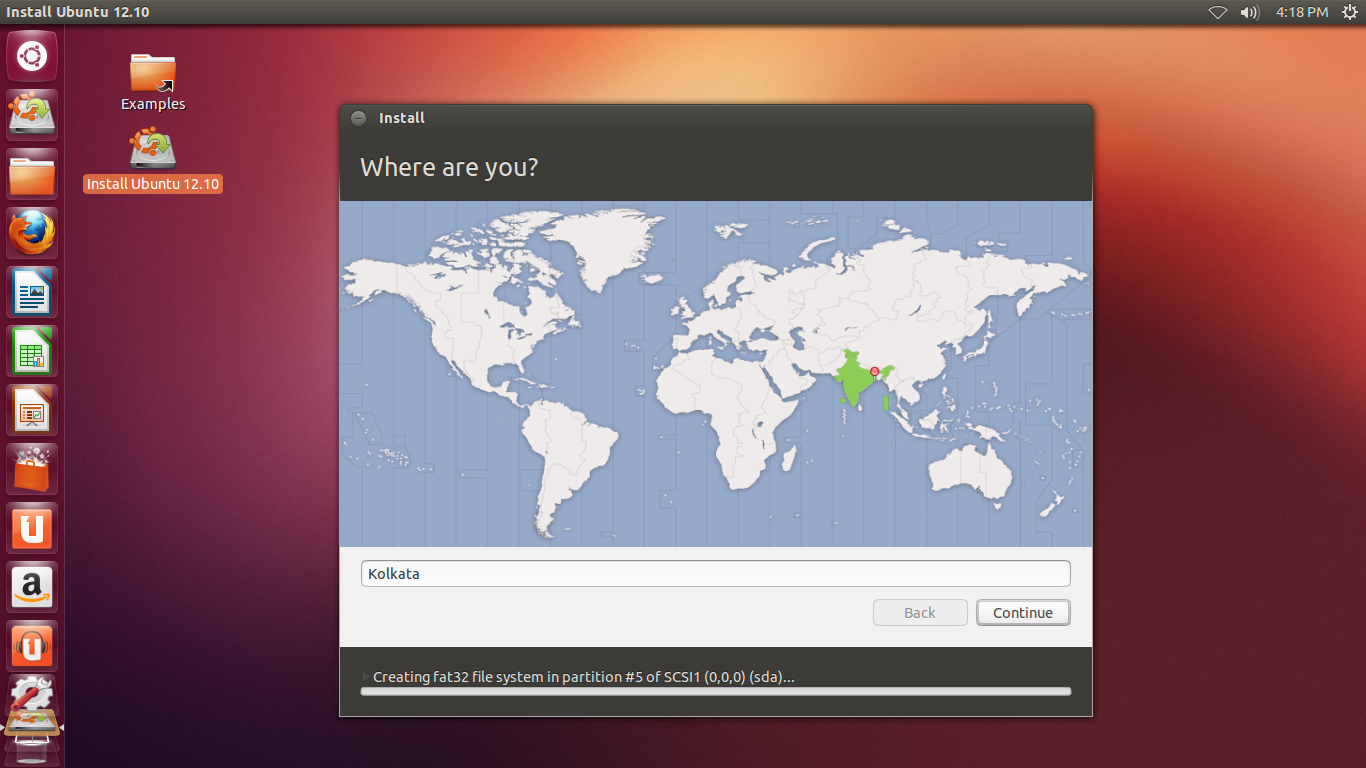
How to install Ubuntu 12.10 [Screenshot Tour]

It takes less than 15 minutes to install. Here is the screesnshot tour of the installation of fresh Ubuntu 12.10.


Friday, 31 August 2012

How to set environment variable JAVA_HOME in Ubuntu

We have to set the environment variable in Ubuntu like JAVA_HOME after installing jdk for first time. In Ubuntu for setting up the environment variable follow the following instruction.

First open your terminal [Ctrl + Alt + t], then enter the following command to open the .bashrc file as shown in snapshot.

sudo gedit ~/.bashrc

Now it will open .bashrc file into your gedit text editor, scroll the file to the end and add your environment variable after 'export' keyword and save file.


Now check those environment variable by printing them in terminal using echo keyword.


Now your environment variable are ready for work.

Friday, 10 August 2012

How to establish internet connection using bluetooth in Ubuntu

Here is the tutorial for establishing new internet connection using your bluetooth enabled mobile device to your computer or laptop in Ubuntu.


First plugin your bluetooth or if you have in-built then start your bluetooth.


Then click on bluetooth symbol on the top panel as shown in below screenshot. It opens a menu, click on "Set Up New Device...". And one dialog box will be shown.


Now click on continue. Then it searches for your bluetooth device[mobile] and display your device. Make sure that bluetooth is enabled on your mobile also. Select your device and click on continue.


Now it shows you a 6 digit code enter this code to your mobile and in new dialog box check that check box "Access the internet using your mobile phone [DUN]". Then it open new setup dialog box as shown in screenshot.


Now select your country, service provider and your internet plan or subscription by APN address and click continue as shown in below screenshots. 


Now you are one step far to your connection. Click on internet connection symbol on your top panel. It shows you your connection name as you gave before during setup click on that and enjoy internet.


Wednesday, 25 July 2012

New XAMPP security concept Problem in Ubuntu


When you upgrade your XAMPP to 1.8.0 or install XAMPP it you can get this type of error message.
"
Access forbidden!
New XAMPP security concept:
Access to the requested object is only available from the local network.
This setting can be configured in the file "httpd-xampp.conf".
If you think this is a server error, please contact the webmaster.
Error 403localhost
Apache/2.4.2 (Unix) OpenSSL/1.0.1c PHP/5.4.4
"


I also attach screenshot of it.


Now to remove this error open your "httpd-xampp.conf" as stated above in error by typing following command in terminal [Ctrl + Alt + t].


   sudo gedit /opt/lampp/etc/extra/httpd-xampp.conf


Now make the two changes in that file as given in the following screenshots.


Original File :


After Changes :


Now restart your XAMPP by executing following command in terminal


   sudo /opt/lampp/lampp restart


Now your phpmyadmin is working properly.


Friday, 22 June 2012

How to establish a new E-mail account in Mozilla Thunderbird

First open Mozilla Thunderbird and write your name, e-mail and password and click continue. It will look for your ISP and get the IMAP, POP and SMTP server of your ISP.

Here you have to choose between IMAP and POP. The difference between them is, IMAP [Internet Message Access Protocol] which stores your mails on remote servers and when you connect internet it shows your mails from remote servers.

And in POP [Post Office Protocol] your mail stored in your PC's Hard-disk and you can see them without internet connection after downloading it.


Now you can see your account on left hand side panel. Select your account from there. It will show you your inbox, sent mails, draft etc.


You can select any mail to watch. You can open more then one mail in new tabs as shown in snapshot.


You can compose new mail by clicking on write button. Then new window will be open, you can write your subject and body here and also can upload attachments.


Mozilla Thunderbird also provides address book for saving contacts.


Wednesday, 13 June 2012

How to hide the files and folders in Ubuntu

For hiding files and folders in Ubuntu you have to follow the below steps.


First create an empty document named ".hidden" in the same directory, you want to hide the files and folders. [right click -> create new document -> empty document]


Then open this ".hidden" file in text editor and list the files and folders line by line those you want to hide and save it.


Now press "Ctrl + h" to hide or show your hidden files and folders vice versa.


After pressing "Ctrl + h".